GitLab Guide
Master the workflow from starting a project to managing your team.
Starting a New Project
To ensure consistency across our tools, we use a Starter Project template. Instead of creating a project from scratch, you should "Fork" the starter template.
How to Fork
-
Navigate to the Starter Project.
-
Click the Fork button near the top right of the page.
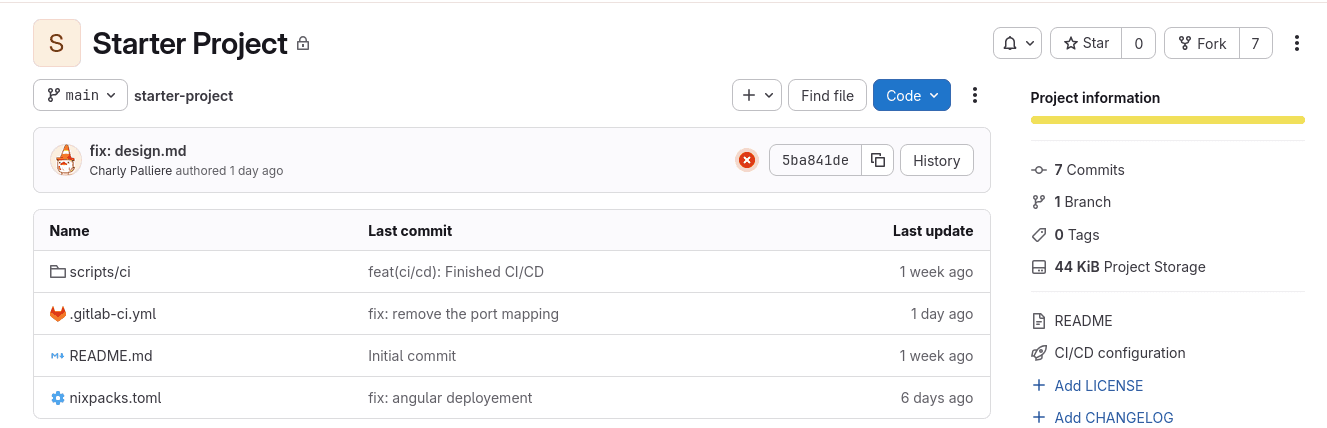
-
Select
ai-workspace/ai-pocs/<irevolution / ishinca>as the Project URL. -
Give your new project a descriptive name.
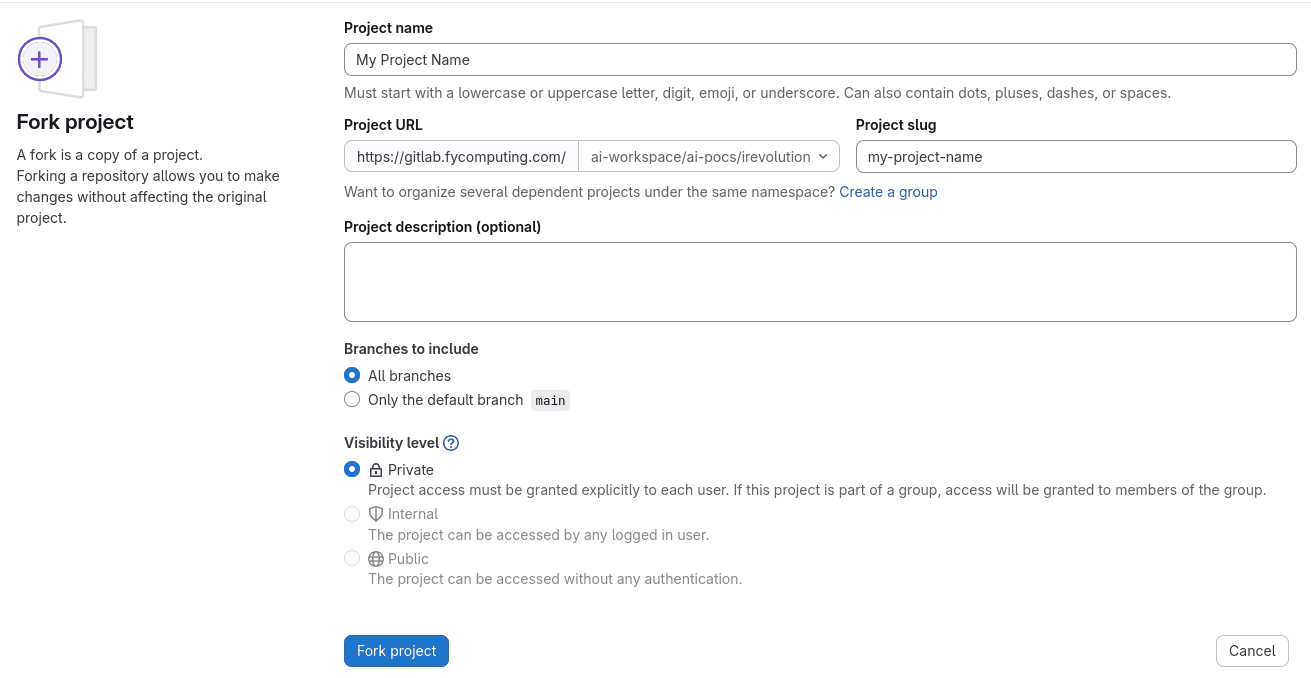
-
Click Fork project. You now have your own copy to work on!
Keeping your Project Updated
When the "Starter Project" is updated with new features or security fixes, you need to sync those changes into your fork.
Syncing your Fork
-
Go to your project's homepage in GitLab.
-
If your fork is behind the original project, you will see a notice saying: "The source project has new changes."

-
Click the Update fork button.
-
This will pull in all the latest updates from the starter template without losing your work.
-
If there is any problem, contact a sysadmin.
Managing Your Team (Admin Only)
If you are a Project or Group owner, you are responsible for managing who has access to the code.
Adding Members
- In your Project or Group, go to Manage > Members in the left sidebar.
- Click Invite members.
- Search for the person's name or email.
- Select a Role:
- Guest: Can view but not change anything.
- Developer: Can push changes and manage issues.
- Maintainer: Can manage settings and add other members.
- Click Invite.
Pro Tip: Use Developer access for most team members to prevent accidental changes to project settings while allowing them to contribute.